Payment reconciliation
In Simple Bike Rental Pro 2.0.4, Payment reconciliation lists payment cases that need a manual check. Open it when you see a warning about an open case, a customer reports paying for a booking that is still unconfirmed, or the site could not confirm the result of a Checkout attempt.
This page records your review. Closing a case does not refund or charge the customer, confirm or restore a reservation, change its payment amounts, or unlock another payment attempt.
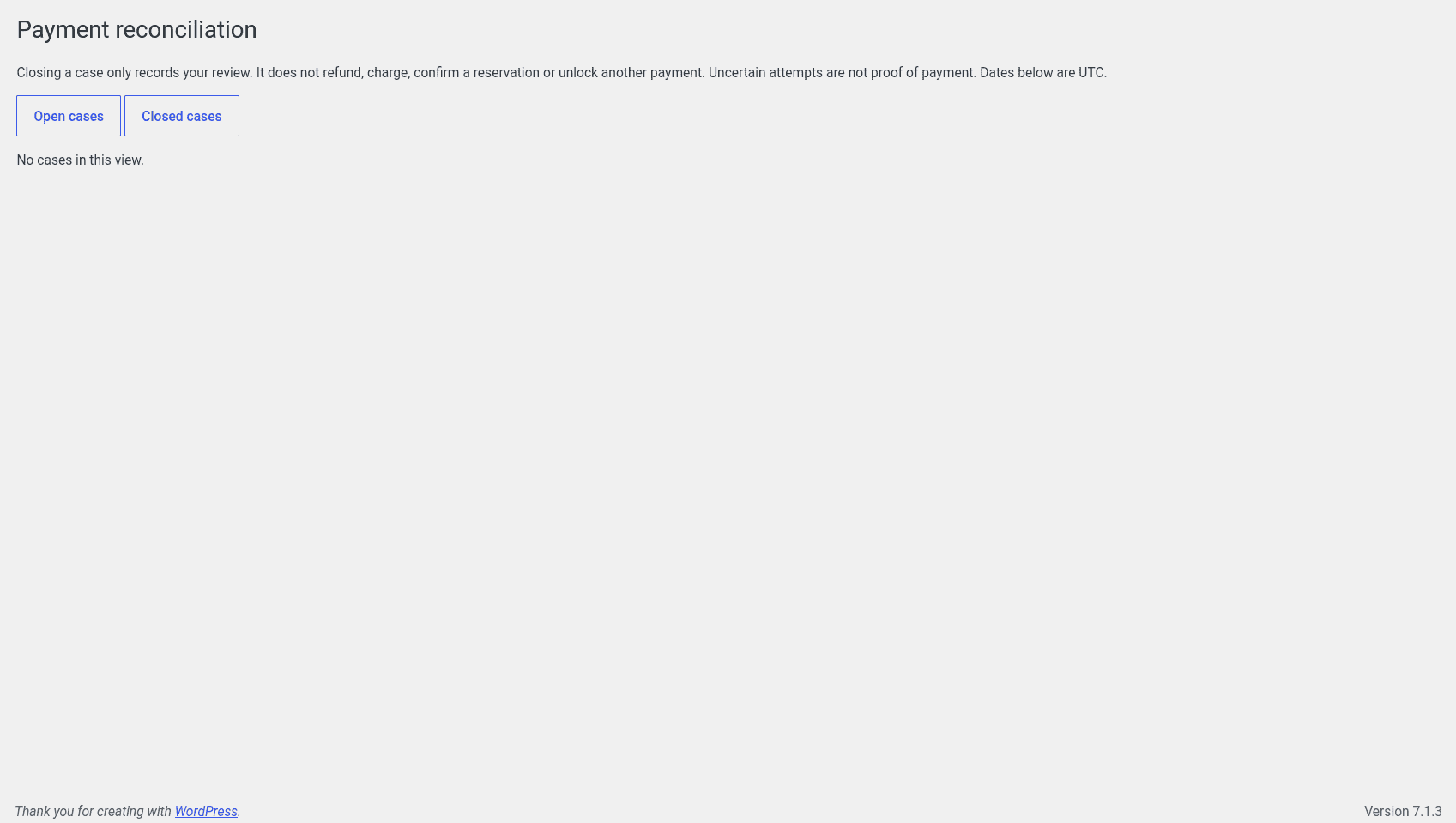
Open the page
- Sign in to the WordPress dashboard with an administrator account. You need permission to manage site settings; permission to manage bookings alone is not enough.
- Go to Bicycles → Payment reconciliation.
- Select Open cases to review outstanding cases, or Closed cases to revisit earlier reviews. The page opens on Open cases by default.
When open cases exist, an administrator warning links to Open cases. An uncertain Checkout result does not necessarily mean the customer has paid.
The list shows up to 25 cases per page, with the most recently updated first. Use Next and Previous when available. No cases in this view. means that the selected list is empty.
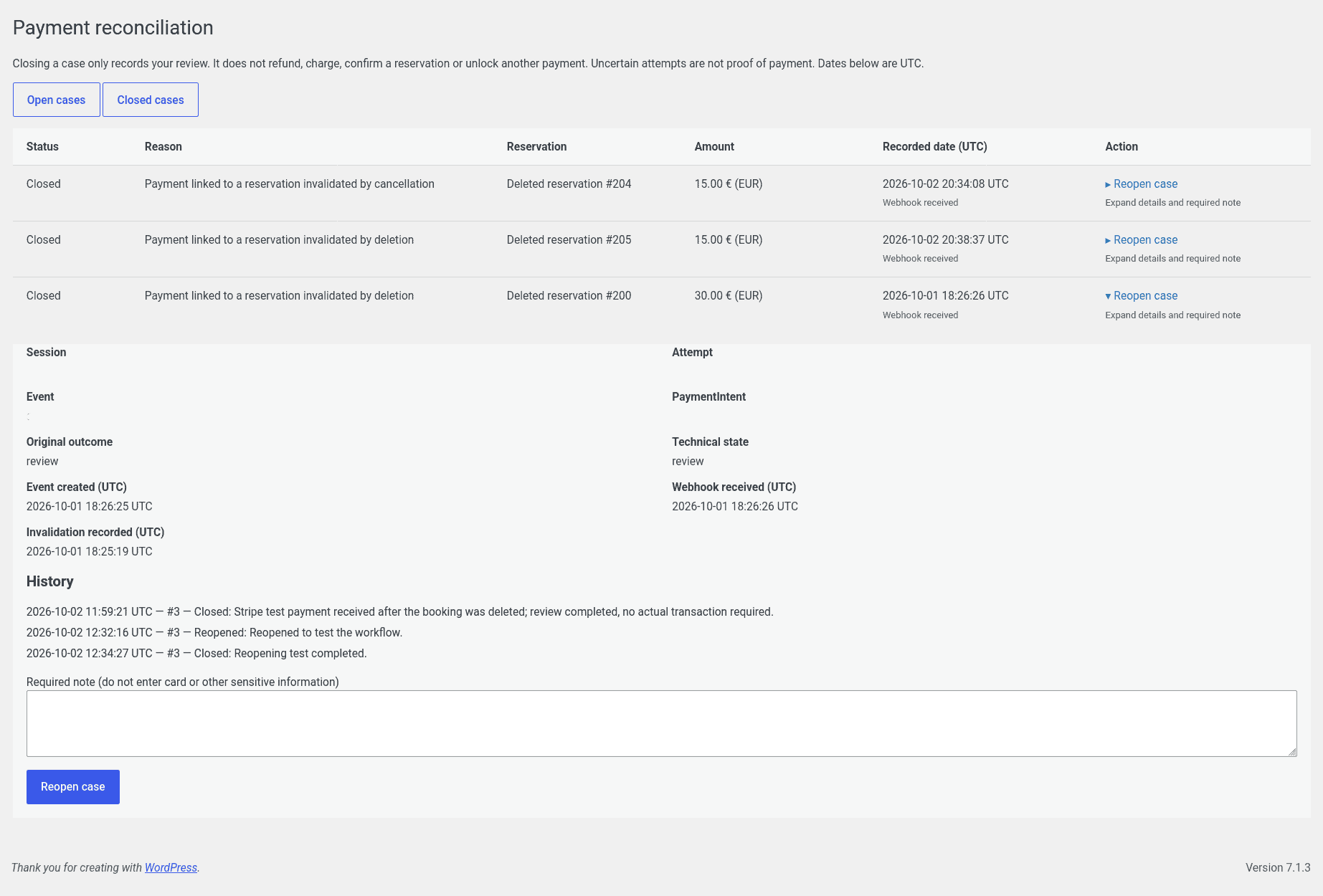
Read a case
Each row shows:
| Label | What to check |
|---|---|
| Status | Open or Closed describes the review, not the payment or booking status. |
| Reason | Why the payment or Checkout attempt needs a check. See the reasons below. |
| Reservation | Click the booking number to open the existing reservation. Deleted reservation #… means it is no longer available to open. Reservation reference unavailable means no booking reference is available. |
| Amount | The recorded payment amount and currency, or the requested Checkout amount for an uncertain attempt. Checkout amount — receipt not established is not money confirmed as received. |
| Recorded date (UTC) | Webhook received is when the site received Stripe's notification. Case created is when an uncertain case was recorded. Neither is the exact time of payment. |
| Action | Mark as reconciled or Reopen case. Expand the row to see the details and note field before submitting an action. |
The Reason can be:
| Reason shown | Meaning |
|---|---|
| Checkout outcome uncertain; payment not established | The site could not confirm whether a Checkout session was created. This can happen when no result is available more than five minutes after the request. Check Stripe to find out whether a session exists and whether the customer has paid. |
| Payment linked to a reservation invalidated by cancellation | The Checkout attempt is no longer valid because the booking was cancelled. Check the payment in Stripe before deciding what to do. |
| Payment linked to a reservation invalidated by deletion | The Checkout attempt is no longer valid because the booking was deleted. Check the payment in Stripe; the case still provides references even though the booking is no longer available. |
| Payment linked to an expired reservation hold | The booking’s payment deadline had passed. Check whether the payment arrived after that deadline. |
| Checkout response received after reservation invalidation | The site received the result of a Checkout creation request after that attempt was no longer valid for the booking. |
| Payment session does not match the recorded attempt | The payment refers to a different Checkout session from the one recorded for the attempt. |
| Different payment evidence for the same session; review required | The site received a different payment reference, amount or currency for the same session. Compare the records in Stripe; this does not necessarily mean the customer was charged twice. |
| Payment received but not applied; manual review required | The payment was recorded but could not be applied to the booking. Possible causes include changed booking details, unavailable bicycles or accessories, or an older payment without a matching current attempt. |
The reason describes what happened when the case was recorded, rather than the booking’s current status. A payment received after cancellation, expiry or deletion does not automatically reactivate or recreate the booking.
Expand the details
Click the case row to expand it. If the booking still exists, View reservation #… opens its edit page.
The details include:
- Session, Event and PaymentIntent: references to compare with Stripe. They are displayed as text; this page does not provide a button to open Stripe.
- Attempt: the reference for the plugin's Checkout attempt, useful when reporting an unresolved case to support.
- Original outcome and Technical state: the payment result and Checkout attempt state recorded by the plugin. These can help support investigate a case. They do not change when you close or reopen the review.
- Event created (UTC), Webhook received (UTC) and Invalidation recorded (UTC): when Stripe created the event, when the site received it, and when the Checkout attempt became invalid. Event creation is not an exact payment timestamp.
- History: previous closures and reopenings, including each note, administrator ID and UTC date, in chronological order.
Unavailable means that a value was not recorded. It does not mean a zero payment or a failed payment.
Check the booking against Stripe
- Expand the case and note its Reservation, Amount, currency and available Session, PaymentIntent and Event references.
- Open View reservation #… if available. Check the rental period, bicycles, quantities, accessories and booking status. In Bicycles → Bookings, compare Payment, Payment mode, Total, Paid and Due for the same booking.
- Open Stripe separately in the account and test or live environment used for that Checkout. Use the recorded references to locate the matching payment, session or event. Confirm whether payment succeeded, is still pending, failed or was refunded; compare the amount and currency. Do not rely only on a customer's name or the time shown in the case.
- Compare the payment with the amount requested for that booking. A deposit can be smaller than Total, with a remaining Due balance. For an uncertain case, the displayed amount is only the Checkout request. If you cannot find and verify a matching payment, keep the case open while investigating.
- Decide what separate action is needed, if any, and complete it through the appropriate booking, Stripe or accounting process. Record the checks and outcome in the case note when closing the review.
Use the amounts saved for the booking and payment, rather than calculating them again from today's rental prices. If the payment currency setting has changed, check the currency code carefully: the case keeps the original currency, while booking screens use the current setting.
Missing details or unusual amounts
For a deleted booking, the case remains available but cannot restore the booking details. If references are missing or you cannot confidently match the payment to a booking, leave the case open and contact support with the available references.
If an amount includes minor units; currency scale not configured, check the amount and currency in Stripe. Do not read the displayed integer as a normal currency amount.
Add a note and close a case
- Select Open cases and expand the case after completing your checks.
- Fill in Required note (do not enter card or other sensitive information). Explain what you checked, the outcome and any separate action taken. The field accepts up to 2,000 characters.
- Click the Mark as reconciled button inside the expanded case.
- The page switches to Closed cases. Expand the case to see the new Closed entry in History.
There is no separate save-note action in 2.0.4: a note is saved with a closure or reopening. An empty note is not accepted. For example: “Checked Stripe reference and booking amounts. Refund completed separately; review finished.” Use this only when it describes checks and actions actually completed.
Closing removes the case from the open list while keeping its details, your note and its history. Repeated notifications for the same payment do not automatically reopen it, but a different payment anomaly can create a new open case. An uncertain attempt and a later payment requiring review can also appear as separate cases; review each one.
Reopen a case
- Select Closed cases and expand the case.
- Enter a new required note explaining why another review is needed.
- Click the Reopen case button inside the expanded case.
- The page switches to Open cases. History keeps the previous entries and adds Reopened with the new note, administrator ID and UTC date.
Operations that need separate action
Closing or reopening a case records your review. It does not carry out the following actions, which require a separate process:
- Refunds, additional charges and accounting corrections. The reconciliation page does not move money or update Stripe.
- Confirming, cancelling, changing or creating a booking. Use Booking management and check bicycle and accessory availability before making changes. A closed case does not restore a deleted booking or send a booking confirmation.
- Correcting booking payment amounts. Updating a booking's Paid field is a separate administrative action; it does not collect or refund money in Stripe.
- Resolving a blocked or uncertain Checkout. Closing the case does not clear the payment restrictions or authorize another Checkout. Investigate the original attempt before asking the customer to pay again; do not create another booking just to retry payment.
For payment configuration, see Online payments & Stripe.