Bicycle sizes
Available in Simple Bike Rental Pro 2.0.5 and later.
Use Quantity by size when several units of the same bicycle model share the same rental rates but have different sizes. Single quantity keeps one stock quantity for the whole model; Quantity by size keeps stock and checks availability separately for each size.
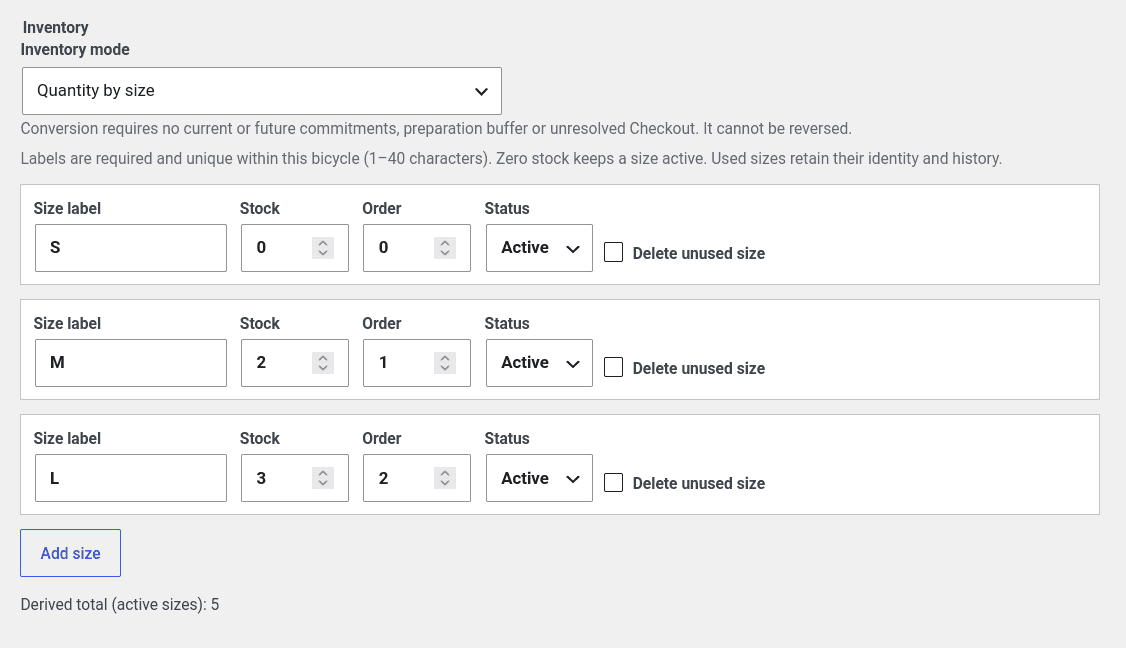
For example, configure one model with S = 0, M = 2, L = 3. A customer can book 1 M + 2 L in one reservation, for a total of 3 bicycles. A reservation contains one model, with one or more sizes. Different models require separate reservations. All sizes of a model share the same rental rates.
Set up sizes
- In WordPress, go to Bicycles → Add Bicycle, or open an existing bicycle for editing.
- In Inventory, choose Quantity by size under Inventory mode.
-
Click Add size for each size and fill in:
- Size label: a free-text label, such as S, M, L or 54 cm.
- Stock: the total number of bicycles configured for that size, including zero.
- Order: a non-negative number; lower numbers appear first.
- Status: Active for sizes offered for booking, or Inactive to keep a size out of new selections.
-
For the example above, add S with stock 0, M with stock 2 and L with stock 3, all Active. Use order 0, 1 and 2.
- Check Derived total (active sizes), then click Add a bicycle or Save Changes.
Labels must contain 1–40 characters and be unique within the model, including inactive sizes. Capitalization and extra spaces do not make a label different: M and m count as the same label.
The derived total is the sum of stock for active sizes: 5 in this example. You change it by editing the size rows, rather than entering an overall Available quantity. This is configured stock, not availability for a particular rental period. Booking 1 M + 2 L does not change the configured stock values.
If saving sizes is blocked
A deleted reservation can leave a Checkout attempt that still needs verification. Read the reason shown first: reservations, valid temporary holds, preparation buffers and Checkout issues require different action. A Stripe check cannot bypass a valid reservation, hold or buffer.
- For a Checkout block, open Bicycles → Payment reconciliation → To verify, expand the relevant bicycle/reservation row and click Verify Stripe session.
- Read the result. Proceed only when the attempt is shown as non-blocking in Verified. If the session is still open, Expire and verify may be available: explicitly confirm that the old payment link will become unusable, then check the result again.
- Check any other attempts for the same bicycle. Other attempts or inventory commitments can still prevent conversion. Once the reported blocks are resolved, return to the bicycle and retry saving.
See Verify a Checkout inventory block for results and limits.
Convert an existing bicycle
Open the bicycle, choose Quantity by size, enter the initial size rows and save. The change and the initial sizes are saved together. A rejected save leaves the existing inventory unchanged.
Conversion cannot be reversed to Single quantity. Existing reservations are not assigned sizes automatically. Their original quantities and recorded amounts remain as they were.
Conversion is blocked while the model has:
- current or future reservations that still reserve bicycles;
- valid temporary reservation holds;
- a preparation buffer that has not ended;
- an unresolved Checkout payment attempt.
Maintain sizes
Reopen the bicycle to add sizes, rename labels, change Order, adjust Stock, or change Status. Save with Save Changes.
Renaming or reordering a size changes the catalog. Existing reservations retain their recorded size labels and order, so an old reservation can show the earlier label.
You can increase stock. A reduction is rejected if it would leave too few bicycles for reservations that still reserve that size. Keep enough stock to cover those reservations until they have ended, including any preparation buffer.
Stock 0 and Inactive have different purposes:
- An Active size with stock 0 stays in the offered size list, shown as Sold out for booking.
- An Inactive size is excluded from new selections. Its identity and recorded history remain. You cannot deactivate a size while it is still reserved by a current or future reservation, a valid temporary hold, a preparation buffer or an unresolved Checkout payment. Follow the reason shown and the procedure above for Checkout issues; verification does not bypass the other size checks.
These checks apply to the affected size. A reservation for M does not automatically prevent a change to L. Each size is checked separately.
To remove a row, use the appropriate action:
- Remove discards a new, unsaved row.
- Delete unused size requests permanent deletion of a saved size when you save the bicycle. It is allowed only if that size has never been used and has no retained reservation or payment references.
- For a size already used, choose Inactive when the checks allow it. It cannot be permanently deleted, even after its earlier reservations have ended.
Remove a model from the catalog
In Bicycles, use the model’s delete action and confirm the removal. The plugin rejects removal while current or future reservations, valid temporary holds, preparation buffers or unresolved Checkout/payment evidence still require protection. Read the reason shown; for Checkout issues, use Payment reconciliation, then retry removal when the checks allow it. Closing an economic case alone does not remove this protection.
When removal is allowed, the model disappears from the catalog and new booking selections. Models with sizes or historical references are retained internally with their identifiers, sizes, retained reservations and payment references. An unused Single quantity model without retained references can be permanently deleted.
Removing a model does not require deleting its sizes first. A previously used individual size still cannot be permanently deleted, even after the related reservation is deleted. Retained reservations remain available for historical review and customer personal-data corrections, with their recorded amounts and composition preserved; they cannot be reactivated or used for new rentals with the removed model.
There is no archive-management or restore screen. Treat catalog removal as a final action in the user interface.
Book sizes
Choose the rental type, period and model. Under Sizes and quantities, select each required size and enter its quantity. New reservations have no sizes selected automatically.
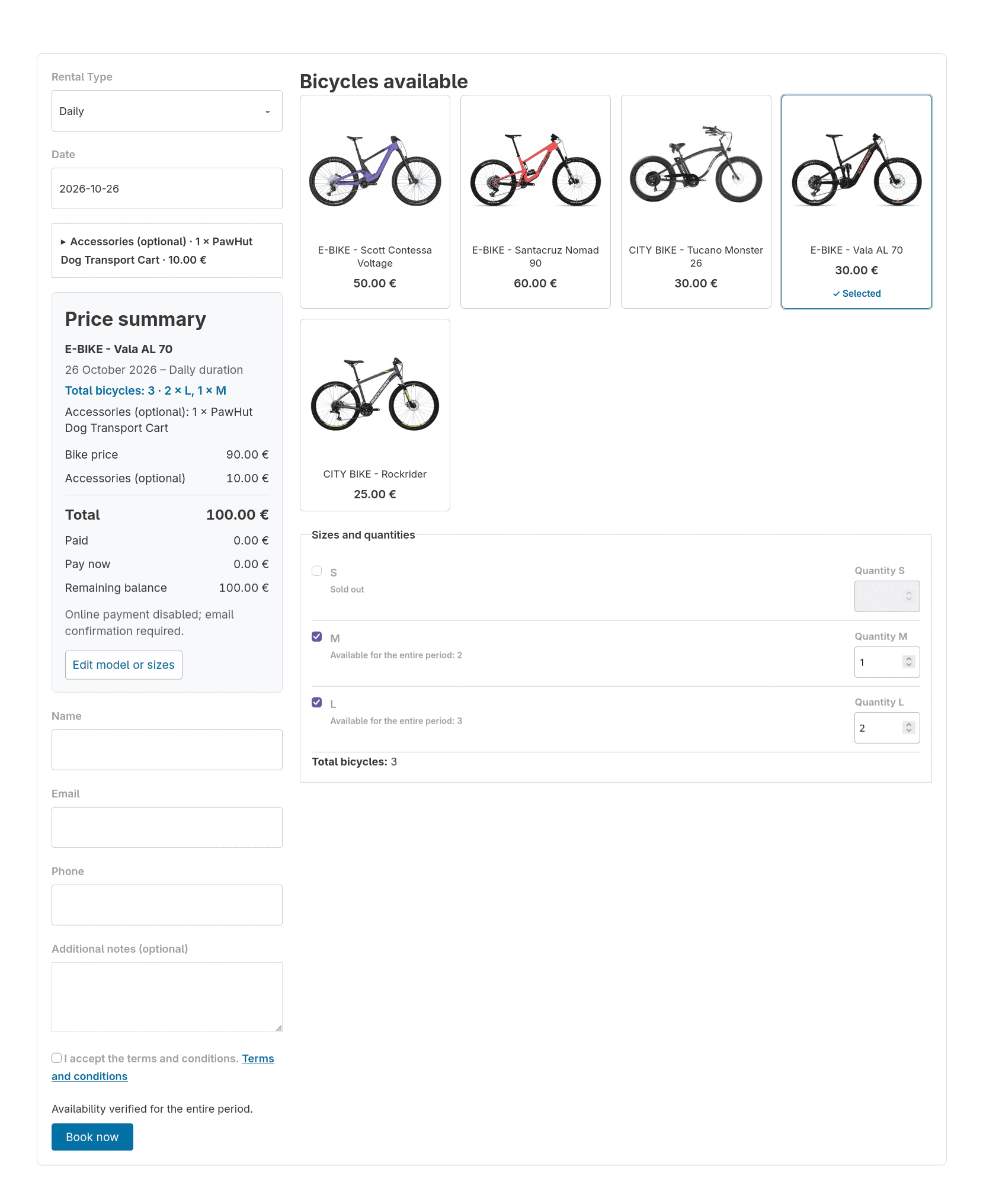
Available for the entire period shows how many units of each size can be booked for the requested interval. It takes existing reservations, valid temporary holds, the applicable preparation buffer and blackouts into account. It can be lower than Stock: M may have stock 2 but only 1 available for those dates.
Active sizes with no availability remain visible as Sold out and cannot be newly selected. Select 1 M + 2 L when those quantities are available; Total bicycles becomes 3 automatically. All selected quantities must be available for the whole period.
If a date change makes a selection invalid, correct its quantity or deselect it. The form does not automatically substitute a size or reduce the selection. Availability is checked again when saving; a preview does not reserve stock.
The model's shared rental rates, discounts and rounding apply to the total bicycle quantity. Accessories have their own quantities and availability: selecting 3 bicycles does not automatically select 3 of each accessory. See Accessories.
Admin reservations
Use Add reservation or open a reservation for editing. Choose the model and sizes as above. In an existing reservation, use Edit model or sizes to change the selection and review the estimate before saving. See Booking management.
Reservations created before a model was converted to sizes may show Sizes not recorded. You can update the customer's personal details without assigning sizes. To change the period or bicycle quantity, or reactivate one of these reservations, select the required sizes first: the plugin cannot determine them from the old total. If you change the model, choose sizes for the new model when it uses them.
While a Checkout payment is being prepared, remains open or has an uncertain outcome, changes to the rental details and amounts may be blocked. You can still update the customer's personal details. Check the payment status before trying to change the rental details again.
View and export
The recorded composition appears in reservation summaries, the admin table and calendar details, and payment summaries. Renaming catalog sizes does not rewrite those recorded labels.
For customized Email notifications, add {bike_sizes} wherever you want the recorded composition to appear. This placeholder is optional; saved templates are not updated automatically. {bike_quantity} continues to show the total number of bicycles.
On Export Reservations, select Include recorded bike sizes (additional CSV columns) to include size details. The export keeps one row per reservation; the default export columns remain available without this option.
Android app
With Simple Bike Rental Pro 2.0.5 and later, Simple Bike Rental Admin for Android 1.0.6 and later supports viewing sizes and creating or editing reservations with several sizes of the same model, including 1 M + 2 L.
Size configuration and inventory changes are made in WordPress. Size inventory is read-only in the app; selecting quantities in a reservation does not edit the configured stock. See Android App for installation and access.